๐Ÿ 

Your Garage. Your Control.
Anytime. Anywhere.

Imagine arriving home on a freezing winter nightโ€”and your garage door opens before you even step out of your warm car. Family visiting while you're away? Open the door for them from across town. On vacation and not sure if the garage is closed? Check real-time status and secure it with just one tap.

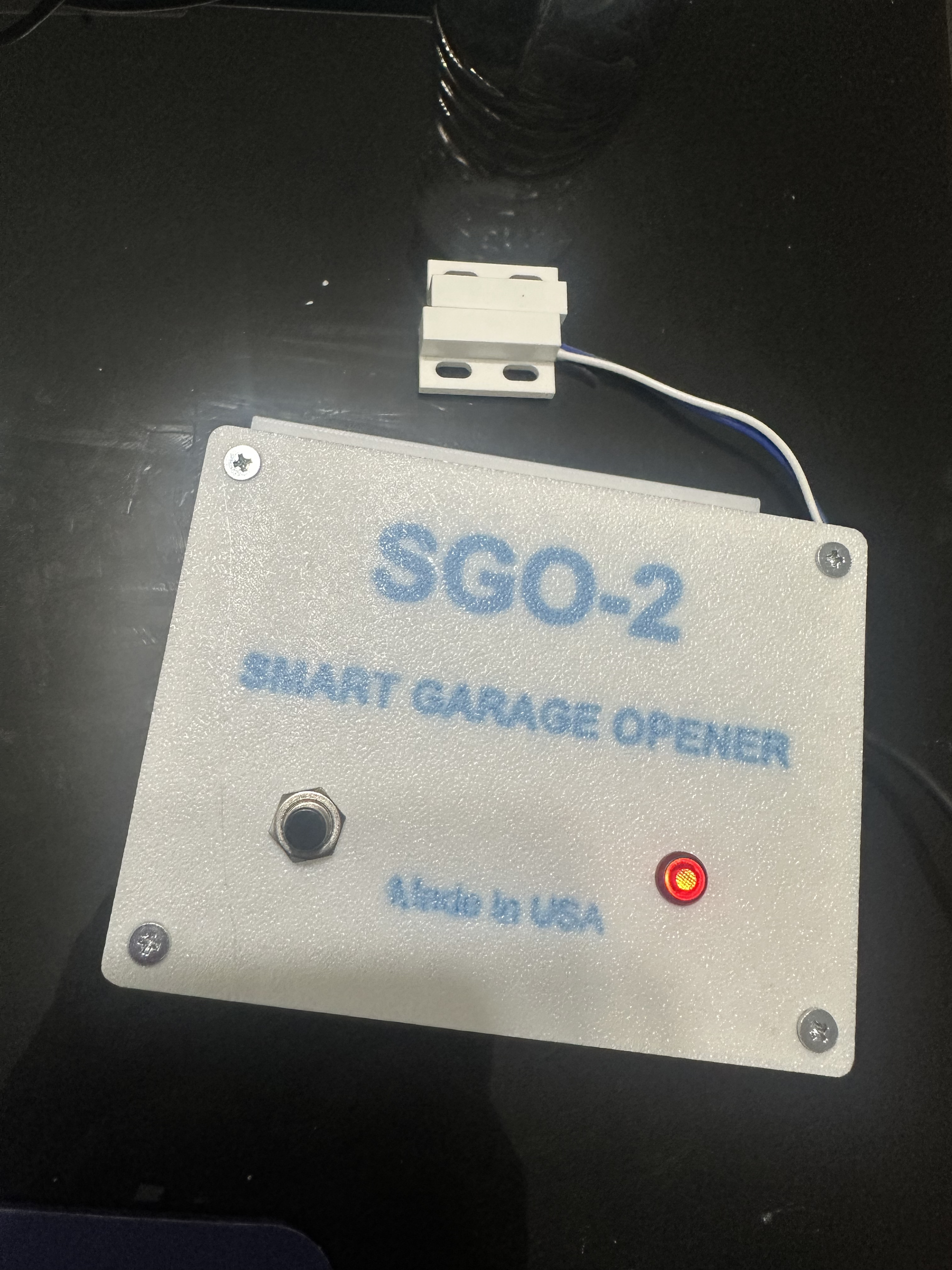
With SGO-1 and SGO-2, turn your existing garage door into a smart garageโ€”without replacing your entire system.

Shop Now Open the App

Smart Upgrade โ€” No Replacement Needed

You don't need a new garage motor, controller, or wiring system. Just add our device to your existing garage setup and enjoy smart control instantly.

โœ”๏ธ
One-time purchase
โœ”๏ธ
No subscription fees
โœ”๏ธ
No hidden charges
โœ”๏ธ
No monthly bills โ€” ever

Designed for Maximum Security

Your security is our top priority. Every device is protected by five independent security layers, controlled only by you:

1. Unique Device ID
Every unit has its own identity
2. 15-Digit Activation Code
No two devices are the same
3. Your Email
Required for ownership verification
4. Your Password
User-defined security
5. Personal Passcode
4โ€“8 characters, numbers or letters

Only YOU can create and control these credentials.

Two Models. One Smart Solution.

Choose the SGO model that fits your garage system โ€” traditional wall switch or modern remote control.

CLASSIC
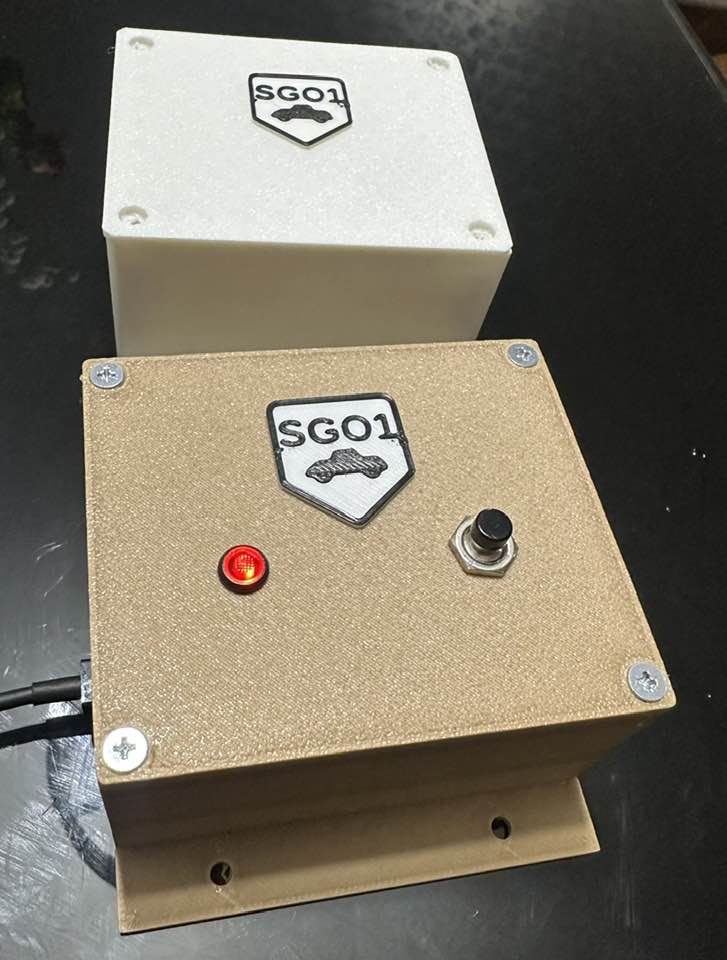
SGO-1 Smart Garage Opener

SGO-1

For Older Garage Systems with Wall Switches

$79.99

Perfect for traditional garage doors using a wired wall switch.

๐Ÿ“ฆ What's Included:

  • โ€ข SGO-1 smart control box
  • โ€ข Integrated switch system

๐Ÿ”ง Simple Installation:

  1. Remove your old wall switch
  2. Open the SGO-1 box (4 screws)
  3. Connect the two wall wires to the green connector inside the box
  4. These connect directly with the device's internal switch wires
  • Simple installation
  • No changes to your garage motor
  • Reliable and stable connection
  • Red LED power indicator
  • Manual push button included
  • Micro USB or 12V power
  • 2.4GHz WiFi compatible
  • No monthly fees โ€” ever
ADD-ON
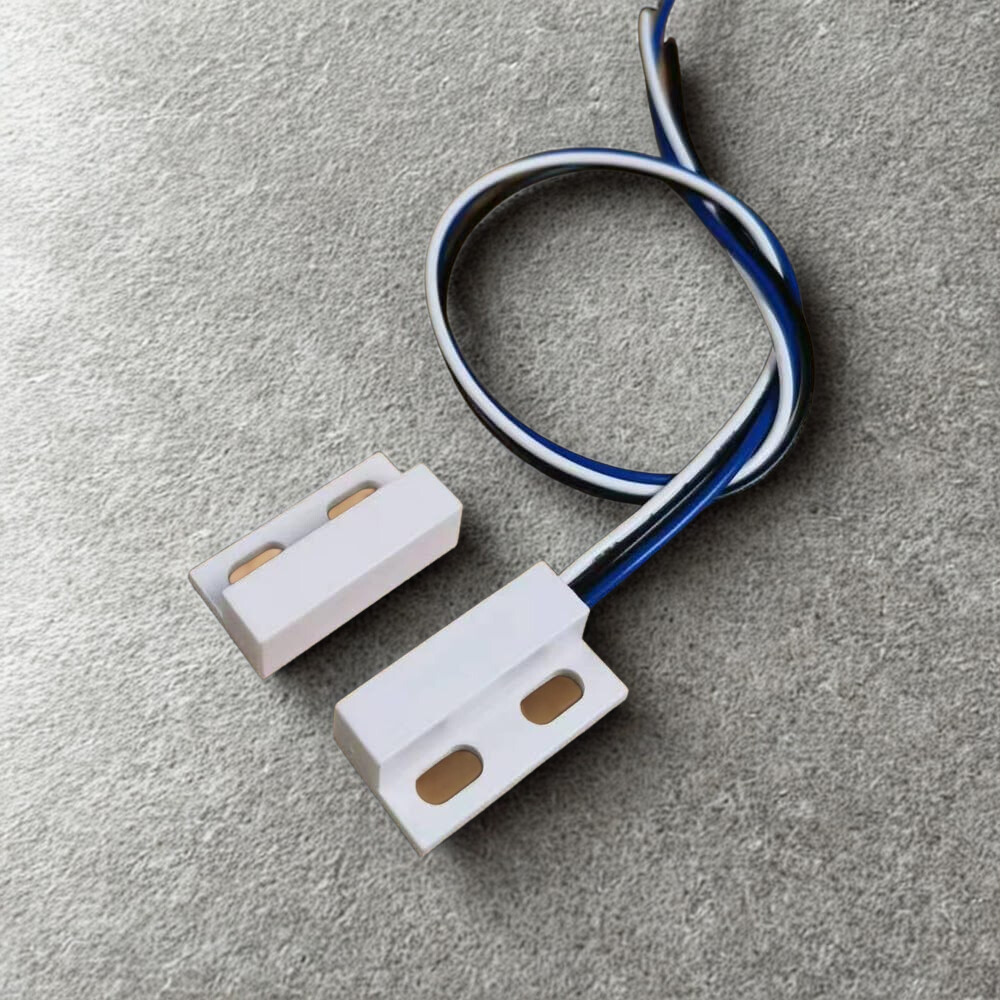
Reed Switch Sensor

Reed Switch Sensor

Optional Door Status Monitor

$9.99

Magnetic sensor for real-time door open/close detection

  • Real-time open/close detection
  • See door status in app
  • Simple 2-wire connection
  • Works with SGO-1 and SGO-2

๐Ÿ”ง Professional Installation Available

Not comfortable with DIY? We offer professional installation service.

Columbus, Ohio area: $50
Within 100 miles of Columbus: $100

Select "Professional Installation" at checkout. We'll contact you within 24 hours to schedule.
Smart Technology Without Risk

Our system never interacts with your garage controller's internal code system. It works alongside your existing setupโ€”making it smarter, not riskier.

๐Ÿ”ง

No Rewiring

Works with your existing garage setup

๐Ÿ’ณ

No Subscriptions

One-time purchase, lifetime access

๐Ÿ”

No Compromises

Five-layer security you control

๐ŸŽฏ Upgrade Your Garage the Smart Way

Just smart control, complete peace of mind, and total convenienceโ€”with SGO-1 or SGO-2.

๐Ÿ“ฑ SGO App Quick Guide

Simple visual guide to linking your device and creating your account

1๏ธโƒฃ

Link Your Device

Enter Device ID and Activation Code

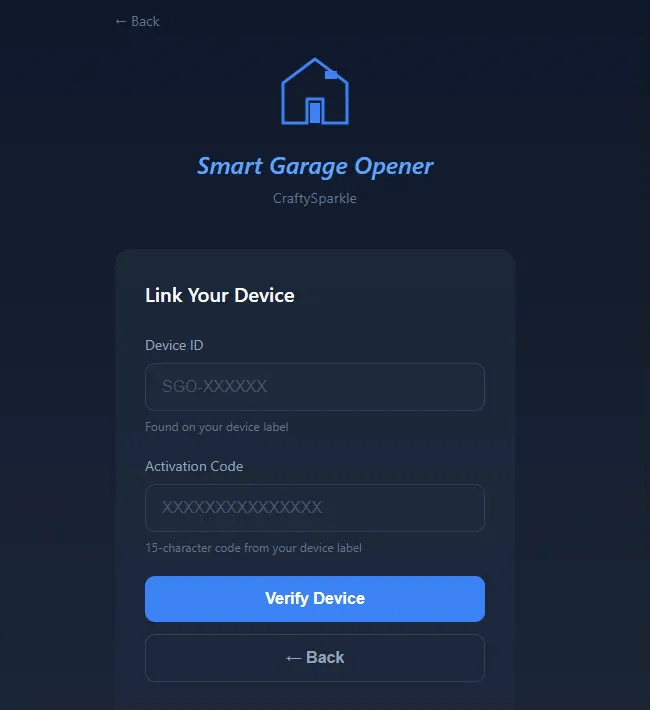
Link Your Device screen

Open the SGO app at craftysparkle.com/smart-garage/app/ and tap "Link New Device". Enter your Device ID (format: SGO-XXXXXX) and 15-character Activation Code from your device label or configuration page.

โš ๏ธ Important: Make sure your SGO device LED is solid red (connected to WiFi) before verifying!

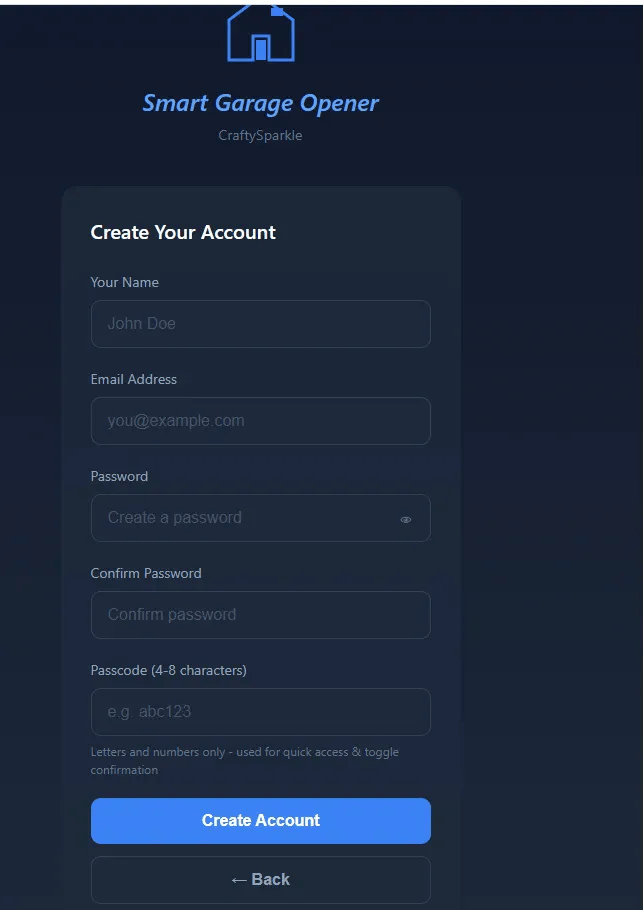
2๏ธโƒฃ

Create Your Account

Set up your login credentials

Create Your Account form

After device verification, fill in your account information:

  • Name: Your full name
  • Email: For login
  • Password: Create a secure password (with confirmation)
  • Passcode: 4-8 characters (numbers, letters, or both)

๐Ÿ” About Your Passcode: This is required EVERY time you toggle the garage. It prevents unauthorized access, even if someone has your phone!

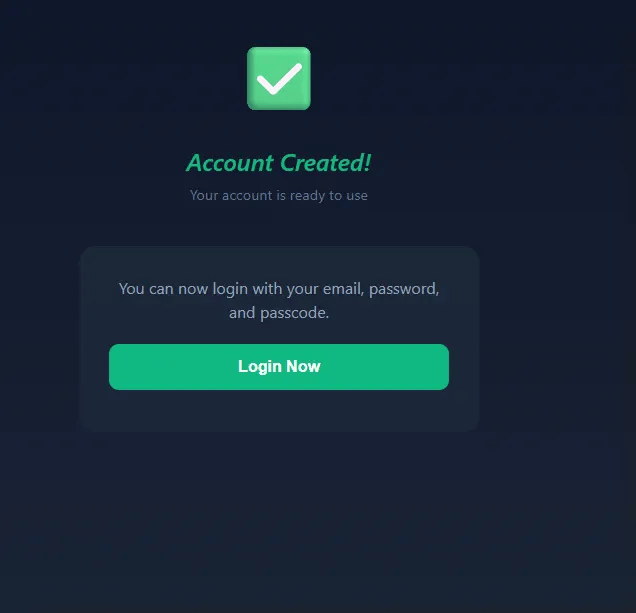
3๏ธโƒฃ

Account Created!

You're ready to login

Account Created confirmation

Success! Your account is created and ready to use. You'll see the confirmation message: "Account Created! Your account is ready to use."

Click the "Login Now" button to access your garage control dashboard.

4๏ธโƒฃ

Your Control Dashboard

Toggle your garage from anywhere

Control dashboard with toggle button

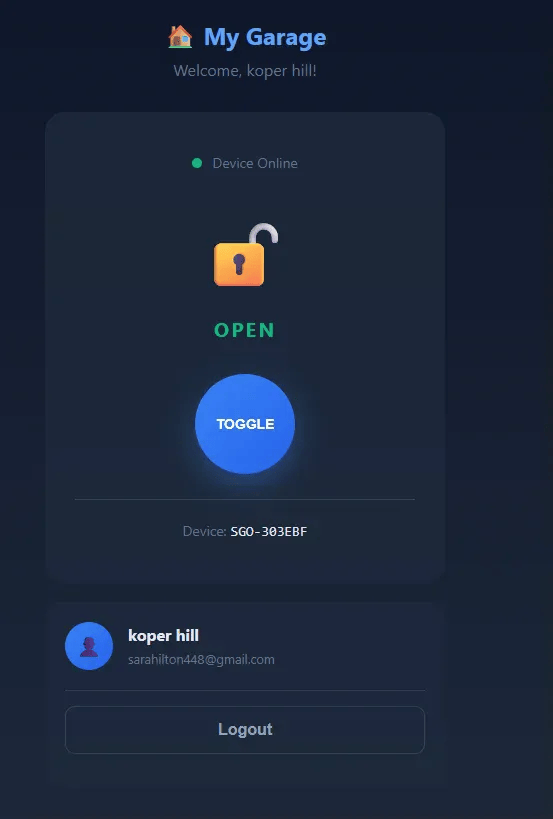
Welcome to your SGO control dashboard! Here's what you see:

๐Ÿ  My Garage

Your personalized garage name

๐ŸŸข Device Online

Shows connection status (Online/Offline)

๐Ÿ”“ Door Status

Shows OPEN or CLOSED (requires Reed Switch)

๐Ÿ”ต TOGGLE Button

Large blue button to open/close garage

๐Ÿ’ก Passcode Protection: When you tap TOGGLE, a popup appears asking for your passcode. This prevents kids, guests, or unauthorized users from opening your garage!

๐Ÿ“ Reed Switch Recommended: Without a Reed Switch, you can't see real-time door status. Many people forget if they closed the garage โ€” the Reed Switch gives you peace of mind!

Need Help Logging In?

Use your Email, Password, and Passcode to login.

Forgot your password? Use the self-service reset with your Email + Device ID + Activation Code.

๐Ÿ”’ Security Note: After 5 failed login attempts, your account will be locked for 15 minutes.

โšก SGO-2 Complete Setup Guide

Follow these steps from garage pairing to app control

๐Ÿ”ง Setup Overview

Part 1: Pair SGO-2 with garage opener (NO power needed)

Part 2: Connect power to SGO-2

Part 3: Connect SGO-2 to your home WiFi

Part 4: Link device to app and create account

1

Check Your Garage Learn Button Color

Find the "Learn" button on your garage motor

Locate your garage door opener motor (usually mounted on the ceiling). Look for the "Learn" button โ€” it's typically on the back or side panel.

Tip

The Learn button color determines compatibility. SGO-2 works with Purple, Red/Orange, Yellow, and Green buttons.

Press the Learn button once and watch the LED color. Common colors:

  • Purple - Most Chamberlain/LiftMaster models (2011+)
  • Red/Orange - Older Chamberlain/LiftMaster
  • Yellow - Some Craftsman models
  • Green - Older security+ models
2

Start Pairing Mode on Garage

Activate the garage's learning mode

Press and release the Learn button on your garage motor. The LED will light up, indicating it's ready to pair with a new remote (30-second window).

Important

You have 30 seconds from pressing the Learn button to complete the next step. Work quickly!

3

Press Pairing Button on SGO-2

Activate the remote inside SGO-2 (NO POWER NEEDED)

Locate the pairing button on the front/top of your SGO-2 device. Press and hold it for 2-3 seconds.

NO Power Required

Do NOT connect SGO-2 to power during pairing! The remote inside has its own battery. Just press the pairing button โ€” that's it!

What's Happening

The relay inside SGO-2 is pressing the garage remote button, sending the pairing signal to your garage opener.

4

Confirm Successful Pairing

Garage LED will blink to confirm

Look at your garage opener motor. The LED should blink to confirm the remote was successfully paired.

Success!

Blinking LED = SGO-2 is now paired with your garage! The remote inside can now control your garage door.

5

Connect SGO-2 to Power

Choose Micro USB or 12V adapter

Now that pairing is complete, connect power to your SGO-2. You have two power options:

Power Options

Option 1: Micro USB cable (like a phone charger) - 5V

Option 2: 12V power adapter with included power socket and USB port

Plug your SGO-2 into power. The red LED will start blinking, indicating it's not connected to WiFi yet.

12V Adapter Benefits

The 12V adapter includes a power socket and USB port, allowing you to power both SGO-1 and SGO-2 from a single outlet if needed!

6

LED Blinking Red = Ready for WiFi

Device is powered but not connected

When you see the red LED blinking, your SGO-2 is powered on but not yet connected to WiFi.

LED Status Guide

Blinking Red = Needs WiFi setup
Solid Red = Connected to WiFi (you'll get here in Step 10)

7

Connect to SGO-2 WiFi Network

Use credentials provided by CraftySparkle

On your phone or computer, go to WiFi Settings and look for a network named "SGO-XXXXXX" (your device ID).

Use the WiFi password provided by the CraftySparkle admin to connect to this network.

Temporary Connection

This is a temporary network created by SGO-2. You'll reconnect to your home WiFi after configuration.

8

Access Configuration Page

Open browser and enter 192.168.4.1

While connected to the SGO WiFi network, open your web browser and navigate to:

192.168.4.1

A configuration page will appear showing your Device ID and Activation Code.

Save These!

Take a photo or write down your Device ID and Activation Code โ€” you'll need them for the app!

9

Enter Your Home WiFi Credentials

Connect SGO-2 to your home network

On the configuration page, enter:

  • WiFi Network Name (SSID) - Your home WiFi name
  • WiFi Password - Your home WiFi password

Click "Save" or "Connect".

Important

Make sure you're entering your 2.4GHz WiFi network. SGO-2 does NOT work with 5GHz networks!

10

Connection Success!

Green page and solid red LED

After a few seconds, a green success page will appear confirming that SGO-2 is now connected to your home WiFi.

The SGO-2 LED should now be solid red (not blinking), indicating a successful WiFi connection.

Almost Done!

Reconnect your phone/computer to your regular home WiFi network before continuing to the app setup.

11

Open SGO App & Link Device

Start the account creation process

Go to the SGO app at craftysparkle.com/smart-garage/app/

Tap "Link New Device".

12

Enter Device Credentials

Verify your SGO-2 device

Enter the credentials from the configuration page (or device label):

  • Device ID - Format: SGO-XXXXXX
  • Activation Code - 15-character code

Click "Verify Device".

LED Must Be Solid Red

Make sure your SGO-2 LED is solid red (connected to WiFi) before verifying!

13

Create Your Account

Set up login credentials and security passcode

After device verification, fill in the registration form:

Fill in your account information:

  • Name - Your full name
  • Email - For login
  • Password - For account access (with confirmation)
  • Passcode - 4-8 characters (numbers, letters, or both)
About Your Passcode

Your passcode is required EVERY time you toggle the garage. This prevents unauthorized access, even if someone has your phone! Use letters and numbers only.

Click "Create Account".

14

Account Created!

Login to access your garage control

A confirmation page will appear: "Account Created!"

You'll see the message: "Your account is ready to use. You can now login with your email, password, and passcode."

Click the "Login Now" button to access your dashboard.

15

Login to Your Dashboard

Enter your credentials

On the login screen, enter your Email, Password, and Passcode.

Click "Login" to access your garage control dashboard.

Security Feature

After 5 failed login attempts, your account will be locked for 15 minutes for security.

16

Your Control Dashboard

Real-time status and garage control

Welcome to your SGO dashboard! Here's what you'll see:

Dashboard Features:

  • ๐Ÿ  My Garage - Your personalized garage name
  • ๐ŸŸข Device Online - Shows connection status (Online/Offline)
  • ๐Ÿ”“ Door Status - Shows OPEN or CLOSED (requires Reed Switch)
  • ๐Ÿ”ต TOGGLE Button - Large blue button to open/close garage
  • Device ID - Your SGO device identifier
  • User Profile - Your name and email
  • Logout Button - Sign out of your account
Reed Switch Recommended

Without a Reed Switch, the app can't show real-time door status (OPEN/CLOSED). Many people forget if they closed the garage โ€” the Reed Switch gives you peace of mind with instant status updates!

17

Toggle Your Garage

Passcode protection for every action

When you tap the large TOGGLE button on your dashboard, a passcode confirmation popup will appear.

What the Popup Looks Like

You'll see a dark popup with:

  • ๐Ÿ” Lock icon at the top
  • "Confirm Action" title
  • "Enter passcode to toggle garage" message
  • Input field for your passcode
  • Cancel and Confirm buttons

Enter your passcode (the one you created during registration) and click "Confirm".

  • โœ… Correct passcode โ†’ Garage toggles (door opens if closed, closes if open)
  • โŒ Wrong passcode โ†’ Error message, try again
Why Passcode Every Time?

This prevents kids from playing with your phone and opening the garage. It also protects against hackers who might gain access to your phone screen. Even if someone opens the app, they can't do anything without your passcode!

๐ŸŽ‰ Setup Complete!

You can now control your garage from anywhere in the world. Enjoy the convenience and security of your SGO Smart Garage Opener!

๐Ÿ“ก Understanding Your Device LED

The LED tells you the connection status at a glance.

๐Ÿ”ด

LED Blinking Red

Device is not connected to WiFi. This is normal when you first power it on! You need to connect it to your home WiFi network.

โš™๏ธ Needs WiFi Setup
๐Ÿ”ด

LED Solid Red

Device is successfully connected to WiFi and ready to use! You can now control your garage from the app.

โœ… Connected & Ready

๐Ÿ” Your Security is Our Priority

Every SGO device comes with unique credentials that protect your garage.

๐Ÿท๏ธ

Device ID

Your unique identifier (like SGO-ABC123) printed on your device label. This links your device to your account.

๐Ÿ”‘

Activation Code

Your 15-character secret code on the device label. Only someone with this code can link to your device or reset your password.

๐Ÿ”’

Password & Passcode

You create a Password to login and a Passcode (4-8 chars) to confirm each garage toggle.

๐Ÿ’ก Keep Your Device Label Safe!

Your Device ID + Activation Code together are like keys to your garage. Store the label somewhere secure and don't share photos of it online.

Why Customers Choose SGO

No replacement needed. No subscriptions. No compromises on security.

๐Ÿ  SGO-1 Features

Perfect for traditional wall switch systems

  • Simple Installation
    Just 4 screws and 2 wire connections
  • No Motor Changes
    Works with your existing garage motor
  • Reliable Connection
    Direct wired connection to wall switch terminals
  • Manual Control
    Built-in push button for local operation
  • Flexible Power
    Micro USB or 12V adapter
  • LED Status Indicator
    Know your connection status at a glance

โšก SGO-2 Features

Perfect for remote-controlled systems

  • Built-in Remote
    Compatible remote pre-installed inside
  • Safe Operation
    Physically presses button โ€” no code access
  • Easy Pairing
    One-button pairing (no power needed)
  • Brand Compatible
    Works with Chamberlain, LiftMaster, Craftsman
  • Isolated System
    Works alongside, not inside, your garage controller
  • Pre-configured
    We set it up before shipping

Frequently Asked Questions

Does SGO-2 access my garage controller's security codes?

No! SGO-2 does NOT access or modify your garage controller's codes. It simply physically presses the remote button that's installed inside the device. Your garage security system remains completely isolated and intact.

Will installing SGO affect my existing garage system?

No. SGO works alongside your existing system without replacing or modifying any components. SGO-1 connects to your wall switch terminals. SGO-2 uses a separate remote. Your original garage motor and controller remain unchanged.

What's the difference between SGO-1 and SGO-2?

SGO-1 = Traditional systems with wall switch. SGO-2 = Modern systems with keypad/remote.

Do I need to power SGO-2 when pairing with garage?

No! The remote inside SGO-2 has its own battery. Just press the pairing button (no power cable needed). Connect power AFTER pairing is complete.

What power options do I have?

You can use a Micro USB cable (like a phone charger) OR a 12V power adapter. The 12V adapter includes a power socket and USB port for added convenience!

How do I pair SGO-2 with my garage?

Press your garage's Learn button, then press the pairing button on SGO-2 (no power needed). The garage LED will blink to confirm. See our complete setup guide above!

What does the LED light mean?

Blinking red = Not connected to WiFi (needs setup). Solid red = Connected and ready to use!

Why do I need a passcode every time I toggle?

Prevents kids, guests, or hackers from opening your garage without your knowledge. It's a second lock even if someone has your phone.

What if I forget my password or passcode?

Use self-service reset! Enter Email + Device ID + Activation Code to set new credentials โ€” no admin approval needed.

Is my garage secure with SGO?

Yes! Your credentials are unique to your device. Toggle requires passcode confirmation. Account locks after 5 failed attempts. SGO-2 uses a normal remote โ€” no code breaking.

Does SGO work with 5GHz WiFi?

No. SGO only works with 2.4GHz WiFi. Look for networks without "5G" suffix.

Do I need the Reed Switch?

It's highly recommended! Without it, you can't see real-time door status. Many people forget if they closed the garage โ€” the Reed Switch gives you peace of mind.

๐Ÿ“ฑ Get the SGO App

Control your garage from anywhere โ€” phone, tablet, or computer.

App Features:

  • Real-time door status (with Reed Switch)
  • Passcode-protected toggle
  • Self-service password reset
  • Works on any device with browser
Open SGO App View App Guide

๐Ÿ“ฒ Install SGO App on Your Phone

๐ŸŽ

iPhone (iOS)

Using Safari Browser

  1. Open Safari browser
  2. Go to craftysparkle.com/smart-garage/app/
  3. Tap the Share button โฌ†๏ธ at the bottom
  4. Scroll down and tap "Add to Home Screen"
  5. Tap "Add" in the top right
  6. The SGO app icon will appear on your home screen!
๐Ÿ’ก Tip: Once installed, open it just like any other app!
๐Ÿค–

Android

Using Chrome Browser

  1. Open Chrome browser
  2. Go to craftysparkle.com/smart-garage/app/
  3. Tap the Menu button โ‹ฎ (three dots)
  4. Tap "Install app" or "Add to Home screen"
  5. Tap "Install" to confirm
  6. The SGO app will be installed on your phone!
๐Ÿ’ก Tip: You'll get a full app experience with icon and notifications!
๐ŸŒ Works on Desktop Too!

You can also access the SGO app from any computer browser โ€” no installation needed. Just visit craftysparkle.com/smart-garage/app/

Your Cart

Your cart is empty